Create a Telegram Chat for Sai Deal Desk
Create a team-owned Telegram group with SaiTeam_bot.
Use SaiTeam_bot to create a deal chat with the team accounts and permissions already set up. You can do this entirely in Telegram.
Only team accounts on the configured operator list can use this workflow. Unique maintains that list. If you need access, ask Unique to authorize your Telegram account. Membership in another Sai group does not grant this access.
Request the Chat
- Open a private conversation with SaiTeam_bot and send
/newdealchat. - Send the group name. The bot applies the
Sai <>title format. - Send additional Telegram handles or numeric user IDs, separated by spaces.
Send
skipto use the configured default members. - Check the preview, then select Create chat. It shows the group title and each member’s role by numeric Telegram ID, not by handle.
- Wait for the completion reply. Send
/chatstatusto check progress.
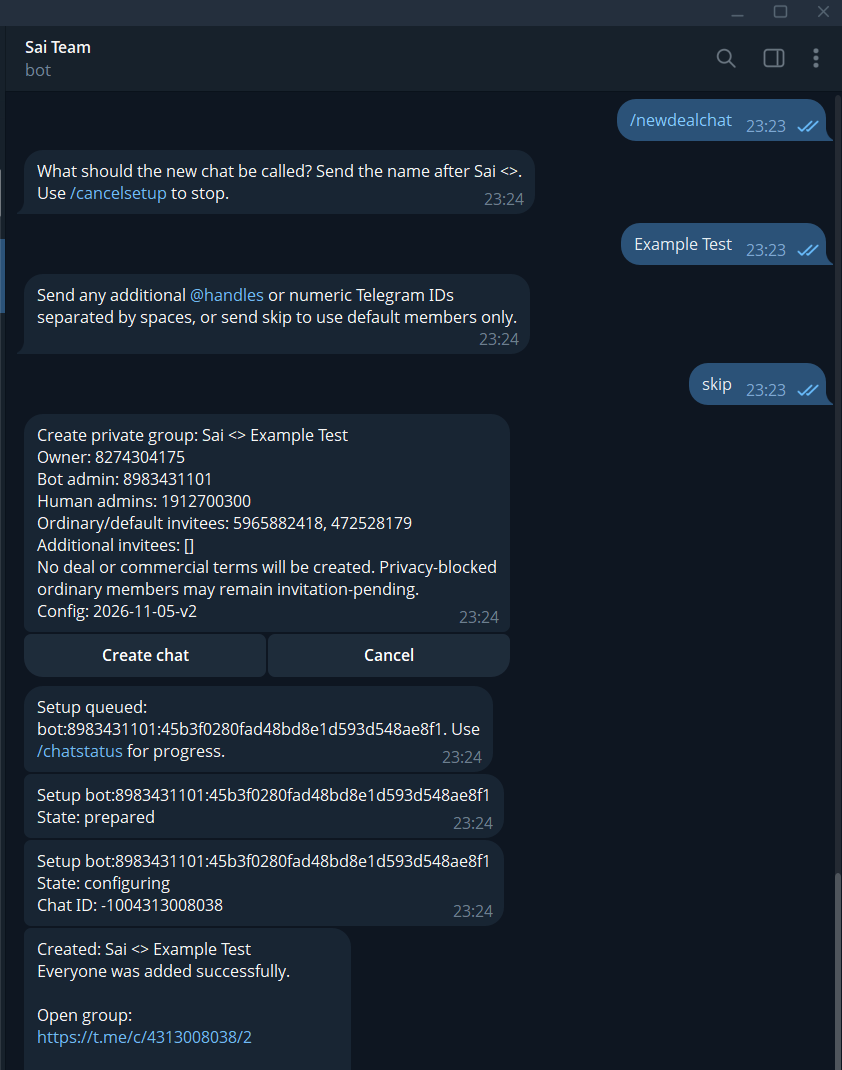
An example request up to the completion reply; the screenshot crops the invite link that follows Open group. Open the screenshot to zoom.
Use /cancelsetup to stop before confirming creation. Once the request is
queued, check that request’s status instead of submitting another one.
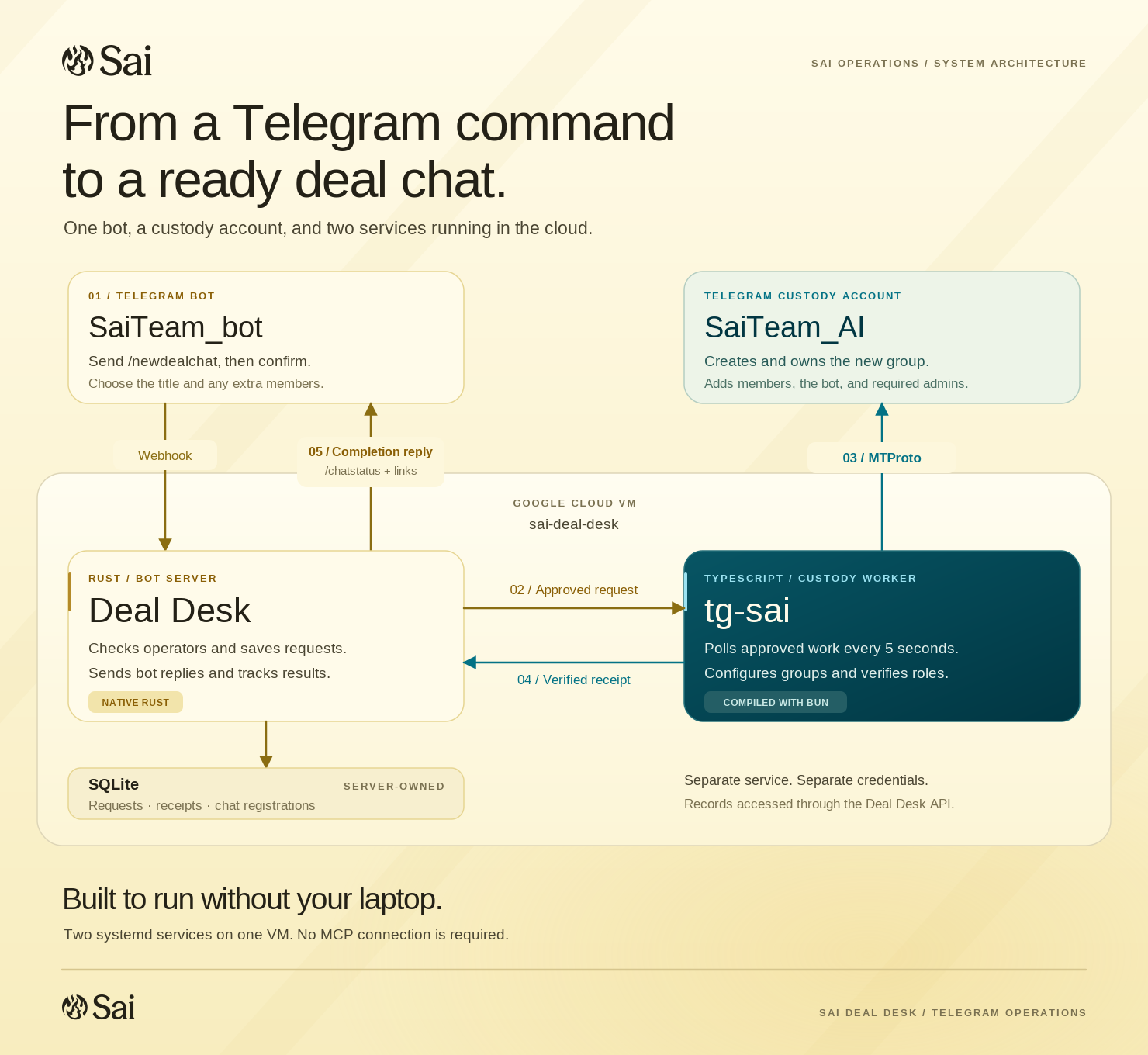
Open the diagram to zoom. The setup runs on the server, so you can use the bot without installing local tools or keeping a computer running.
What You Get
The group has a team custody owner and automatically configured admins:
| Telegram Identity | Account and Role |
|---|---|
| @SaiTeam_bot | A Telegram bot and group admin. Handles your setup request, confirmation, and status replies. |
| @SaiTeam_AI | A Telegram user account and group owner. Creates the group under team custody. |
| @uniquedivine | Unique’s account. Added as a group admin automatically. |
| Your requesting account | Your authorized team account. Added as a group admin automatically. |
| Configured default members and extra participants | Invited as ordinary members, unless they also have one of the admin roles above. |
Despite the name, SaiTeam_AI is a user account, separate from the bot. Using it as the owner keeps ownership with the team when an individual teammate changes roles. SaiTeam_bot provides the bot commands and replies; you do not need to sign in to the custody account to request a chat.
The service adds people, applies the admin roles, and verifies the required permissions before reporting that the group is ready. Someone who appears in more than one role is added once.
The completion reply includes:
- Open group, a link that existing members can use to open the conversation.
- Invite link to copy and share, the group’s primary invitation link for intended participants. Its Telegram settings determine how recipients join.
Telegram privacy settings can prevent a direct invitation. The reply identifies people who still need to join and provides their controlled invitation links. Forward those links to the intended people. A ready group does not mean that someone listed as invitation-pending has joined.
If Setup Needs Attention
Telegram sometimes requires a wait before another invitation or action. Use
/chatstatus and keep the same request; the service saves the group and resumes
eligible retries after the wait.
If the reply asks for operator attention, send the request ID to Unique. If a link is unavailable, follow the fallback instruction in the reply. Avoid creating a replacement group while the original request is unresolved.
For a disposable test group, ask the custody-account operator to delete it. Selecting Leave from your personal account only removes you from the group.
Connect the Chat to the Deal
Chat creation does not automatically define commercial terms or issue funds. Record the agreement and subsequent activity in Deal Desk. When confirming a payment in chat, identify the condition it fulfilled and check its execution evidence first. Record the sent communication with the corresponding deal, deal action, or payment.
See Use Deal Desk Data for the records and access options.